








Quick Answer: LCD black spots are dark, non-illuminated areas on a screen caused by three distinct mechanisms: dead pixels (failed TFT transistors), external dirt or debris (surface contamination), or pressure damage (liquid crystal layer disruption). Dead pixels are permanent hardware failures, dirt wipes away with cleaning, and pressure spots may fade over time but often require panel replacement. Accurate diagnosis is critical—treating a dead pixel as dirt wastes time, while ignoring pressure damage can lead to permanent screen failure. For industrial, medical, and automotive applications, prevention through ESD-safe manufacturing, optical bonding, and 100% AOI inspection is the only reliable strategy.
What Are LCD Black Spots?
LCD black spots are localized dark areas on a display where light fails to reach the viewer’s eye. Unlike white spots on LCD screens, which result from excessive backlight leakage, black spots represent an absence or blockage of light at specific screen coordinates.
The Science Behind Dark Spots on LCD Panels
A standard TFT LCD panel generates images through a precisely orchestrated optical stack:
- LED Backlight emits uniform white light from the rear
- Light Guide Plate (LGP) and diffuser sheets spread that light evenly
- Bottom polarizer filters light to a single polarization plane
- TFT Glass contains millions of thin-film transistors, each controlling voltage to a subpixel
- Liquid Crystal Layer twists in response to voltage, modulating light transmission
- Color Filter Glass adds red, green, and blue subpixels
- Top polarizer completes the light valve mechanism
When this system functions correctly, each pixel achieves precise brightness and color. A black spot appears when something interrupts this chain—whether at the transistor level (dead pixel), the surface level (dirt), or the liquid crystal level (pressure damage).
Why Black Spots Are More Concerning Than White Spots
Black spots are fundamentally more alarming than white spots for two reasons:
- Structural damage: Black spots typically indicate damage to the TFT array, liquid crystal layer, or polarizer film—components that cannot be repaired without disassembling the panel. White spots, by contrast, often stem from diffuser plate displacement or backlight leakage, which are sometimes correctable.
- Irreversibility: A dead pixel or pressure bruise is almost always permanent. While some white spots (particularly moisture-induced clouding) can resolve naturally, black spots rarely improve without intervention.
Common Causes of Black Spots on LCD Displays
Understanding the root cause determines whether a black spot is a five-minute cleaning job or a $500 panel replacement. Here are the six primary mechanisms.
1. Dead Pixels (TFT Transistor Failure)
A dead pixel occurs when the thin-film transistor (TFT) controlling a specific subpixel fails permanently. The TFT acts as a microscopic switch and voltage regulator. When it shorts, opens, or suffers gate oxide breakdown, the corresponding subpixel receives no voltage and remains permanently dark.
Common triggers:
- Manufacturing defects: Microscopic particles or photolithography errors in the TFT array
- ESD (electrostatic discharge): A static shock as low as 100V can destroy a TFT transistor
- Thermal aging: Prolonged operation above 60°C accelerates TFT degradation
- Overvoltage: Faulty driver ICs applying excessive gate voltage
Industry context: Under ISO 13406-2, a Class 1 panel allows zero dead pixels, while Class II permits up to 5 dead pixels on a 1920×1080 screen. Industrial and medical displays typically demand Class I or better.
2. Dirt, Dust, and External Debris
Not every black spot is a defect. A surprising number of “dead pixels” reported to manufacturers are simply dirt, dust, or oils on the outer glass or polarizer surface.
Common sources:
- Finger oils and skin flakes
- Keyboard debris pressed against laptop screens when closed
- Manufacturing residues (protective film adhesive, dust from packaging)
- Environmental dust in industrial or outdoor deployments
The critical test: Power off the display. If the spot remains visible, it is external dirt or physical surface damage. If it disappears, the issue is internal (pixel or backlight).
3. Pressure Damage (Liquid Crystal Compression)
Pressure damage—sometimes called a screen bruise—occurs when external force compresses the liquid crystal layer, permanently disrupting molecular alignment in a localized area.
Typical scenarios:
- Closing a laptop with a keyboard cover or debris on the keys
- Stacking heavy objects on a monitor during shipping or storage
- Over-tightening mounting screws during industrial panel installation
- Impact from tools or components during device assembly
The liquid crystal layer is only 3–5 micrometers thick (about 1/20th the width of a human hair). Even modest pressure can displace the alignment layer, creating a dark patch where molecules can no longer twist to allow light through. Unlike dead pixels, pressure spots are often larger (>2mm) with fuzzy, irregular edges and may display a subtle rainbow halo under angled light.
4. Backlight LED Failure (Localized Darkness)
In direct-lit LED panels (common in large monitors, TVs, and industrial displays), individual LED diodes can burn out. When an LED fails, the zone directly above it receives no illumination, creating a dark patch that can be mistaken for a cluster of dead pixels.
Key distinction: LED failure affects a zone (typically 10–50mm), while dead pixels are pinpoint (0.1–0.3mm). LED failures also tend to have softer, circular boundaries, whereas dead pixel clusters have sharp, rectangular edges aligned to the pixel grid.
5. Polarizer Film Damage or Delamination
The polarizer films on both sides of the LCD glass are precision optical components. Scratches, chemical exposure, or UV degradation can create localized areas where polarization is compromised, resulting in dark spots or patches.
Common in:
- Outdoor displays with inadequate UV protection
- Panels cleaned with ammonia-based solvents (Windex, etc.)
- Aging displays where the polarizer adhesive degrades, causing edge delamination that creeps inward
6. Moisture Ingress and Corrosion
In high-humidity or outdoor environments, compromised seals allow moisture to penetrate the display stack. Water vapor corrodes TFT metal traces, LED solder joints, or flex cable contacts, creating conductive paths that short out pixels or entire zones.
This is particularly dangerous because corrosion is progressive—a small dark spot today can expand into a large dead zone within weeks.
Types of LCD Black Spots: Dead Pixel vs Dirt vs Pressure Damage
Accurate identification saves time, money, and frustration. Use this visual reference to categorize your black spot before attempting any fix.
| Feature | Dead Pixel | Dirt / Debris | Pressure Damage | LED Failure |
|---|---|---|---|---|
| Appearance | Tiny dot, sharp edges | Irregular smudge or speck | Blotchy patch, diffuse edges | Dark circular/oval zone |
| Color | Pure black (or stuck R/G/B) | Gray, brown, or translucent | Dark purple to black | Uniform dark gray |
| Screen OFF visibility | Invisible (internal) | Still visible (external) | May fade or remain faint | Disappears completely |
| Size | 0.1–0.3mm (1 pixel) | Variable, 0.2–5mm | 2–20mm | 10–50mm |
| Edge sharpness | Pixel-perfect rectangle | Irregular, organic | Soft, blurry boundary | Soft gradient edge |
| Cause | TFT transistor failure | External contamination | LC layer compression | LED diode burnout |
| Fixable? | No (permanent) | Yes (cleaning) | Rarely (usually permanent) | Yes (BLU replacement) |
| Common devices | All LCD types | All displays | Laptops, tablets, handhelds | Large monitors, TVs, industrial HMIs |
Dead Pixels: Stuck vs Hot vs Dead
Not all non-conforming pixels are truly “dead.” Understanding the subtypes helps set realistic repair expectations:
- Stuck Pixel: One or two subpixels remain permanently lit (red, green, or blue). The TFT is stuck in the “on” position. Software tools or gentle pressure can sometimes recover these.
- Hot Pixel: All three subpixels are stuck on, appearing as a bright white or colored dot. Often caused by manufacturing residue on the TFT.
- Dead Pixel: All subpixels are permanently off. The TFT has failed completely. No software or physical intervention can revive it.
Dirt That Mimics Dead Pixels
A dust particle as small as 0.1mm sitting on the polarizer surface is visually indistinguishable from a dead pixel to the naked eye. Before declaring a pixel dead:
- Power off the display
- Shine a flashlight at a 45-degree angle across the screen
- Dirt will cast a tiny shadow and may have height (you’ll see a highlight edge)
- A dead pixel is perfectly flat and flush with the glass surface
Pressure Damage: Temporary vs Permanent
Pressure spots exist on a spectrum:
- Temporary (elastic deformation): The liquid crystal layer is compressed but the alignment layer is intact. If the pressure is removed quickly, molecules may reorient within 24–72 hours. The spot gradually fades.
- Permanent (plastic deformation): The alignment layer is physically scraped or the cell gap is permanently altered. The spot remains indefinitely and may darken over time as the damaged area spreads.
How to Diagnose Black Spots: Step-by-Step Testing
Follow this systematic workflow to identify your black spot type before spending money on repairs.
Step 1 — Visual Inspection with the Screen Powered Off
Turn the display completely off and examine the spot under ambient light.
- Spot still visible? → External dirt, surface scratch, or polarizer damage. Proceed to Step 2.
- Spot disappears? → Internal defect (dead pixel, pressure damage, or LED failure). Proceed to Step 3.
Step 2 — External Cleaning and Magnification
If the spot is external:
- Use a camera blower or canned air to remove loose particles
- Gently wipe with a dry microfiber cloth in circular motions
- If persistent, dampen the cloth with 70% isopropyl alcohol
- For stubborn particles, use a piece of adhesive tape (low-tack) to lift the debris
- Reinspect with a 10x magnifying glass
If the spot remains after cleaning, it may be a scratch or polarizer defect rather than dirt.
Step 3 — Solid Color Test Pattern
Display full-screen solid colors: black, white, red, green, and blue.
- Dead pixel: Appears black on all colors except possibly one (if it’s a stuck subpixel)
- Stuck pixel: Shows as a bright color (red/green/blue/white) on black backgrounds
- Pressure damage: Dark on all colors, may change slightly in hue but remains a visible patch
- LED failure: Dark on all colors; on white backgrounds, appears as a gray shadow
Step 4 — Touch and Texture Test
With the screen off, gently run a microfiber cloth over the spot area:
- Dirt: You may feel slight resistance or texture
- Scratch: Your fingernail catches on the groove
- Pressure damage: The glass surface feels normal, but the area may have a slight depression if the damage is severe
Step 5 — Software-Based Pixel Detection
Download a pixel detection tool (Dead Pixel Buddy, InjuredPixels, or LCD Test Pages).
- Run the rapid-color-cycle test for 10–30 minutes
- If the spot changes color or disappears: You have a stuck pixel, not a dead one
- If the spot remains black across all tests: Confirmed dead pixel or pressure damage
Important: Software tools cannot fix dead pixels or pressure damage. They only work on stuck subpixels.
Step 6 — Professional AOI Diagnosis
For industrial, medical, or high-value displays, send the panel for Automated Optical Inspection (AOI). Modern AOI systems detect defects down to 0.01mm and can distinguish between TFT failure, LC contamination, and backlight anomalies with 99.9% accuracy.
At JicTech, every industrial display undergoes 100% AOI before shipment, ensuring zero dead pixels and zero pressure defects reach the field.
How to Fix Black Spots on LCD Screens
Your repair strategy depends entirely on the diagnosis. Applying the wrong fix wastes time and can cause additional damage.
Method 1 — Cleaning External Dirt and Debris
Tools needed: Microfiber cloth, 70% isopropyl alcohol, camera blower, low-tack adhesive tape
Procedure:
- Power off and unplug the display
- Hold the display vertical and blow air across the surface to dislodge loose particles
- Apply isopropyl alcohol to the microfiber cloth (never directly to the screen)
- Wipe gently in circular motions from the center outward
- Inspect under magnification and repeat if necessary
⚠️ Warning: Never use ammonia-based cleaners (Windex), paper towels, or abrasive cloths. These can permanently damage anti-glare coatings and polarizer films.
Method 2 — Stuck Pixel Recovery
Stuck pixels (not dead pixels) can sometimes be revived:
Software approach:
- Run JScreenFix, UDPixel, or a custom RGB cycle video for 10–30 minutes
- The rapid flashing can “unstick” a frozen TFT transistor in approximately 30% of cases
Physical approach:
- Place a damp microfiber cloth over the stuck pixel
- Use a blunt, non-conductive tool (rubber stylus cap) to apply very gentle circular pressure for 5–10 seconds
- Power cycle the display and retest
Success rate: 30–50% for stuck pixels. 0% for dead pixels.
Method 3 — Pressure Spot Recovery (Temporary Cases Only)
If the pressure damage is recent (<48 hours) and the spot is fading:
- Remove all pressure from the display immediately
- Power off and leave the display in a temperature-stable environment (20–25°C)
- Avoid touching the affected area for 72 hours
- Some temporary LC deformations will self-correct as molecules reorient
If the spot shows no improvement after 72 hours, it is permanent.
Method 4 — LED Backlight Unit Replacement
For LED failure causing zone darkness:
- Disassemble the display bezel and shielding
- Identify the failed LED strip or individual diode
- Replace with a matching backlight unit (must match luminance, color temperature, and current draw)
- Reassemble and verify uniformity
Note: Industrial displays often use custom BLU designs. Replacement requires sourcing from the original manufacturer to maintain optical specifications.
Method 5 — Panel Replacement (The Only Solution for Dead Pixels and Permanent Pressure Damage)
Dead pixels and permanent pressure spots cannot be repaired at the component level. The only solution is replacing the entire LCD panel.
Cost guidelines:
- Consumer monitors (15–27″): $100–$300
- Industrial displays (7–21.5″): $150–$600 (depending on interface, touch integration, and optical bonding)
- Medical grade / automotive: $500–$3,000+ (due to certifications, custom optical bonding, and long-term availability requirements)
Prevention Strategies for Industrial Displays
For B2B buyers and product designers, preventing black spots at the manufacturing stage is exponentially more cost-effective than field replacement.
1. ESD Protection During Assembly
Electrostatic discharge is a leading cause of dead pixels during manufacturing. A static charge as low as 100V—undetectable to humans—can destroy a TFT transistor.
JicTech standards:
- Full ESD flooring and wrist straps in all assembly areas
- Ionizing air blowers at critical workstations
- Conductive packaging for all bare panels and components
2. Optical Bonding for Structural Integrity
Optical bonding eliminates the air gap between the LCD glass and cover lens, filling it with optically clear adhesive. This provides three critical anti-defect benefits:
- Pressure distribution: The bonded cover lens absorbs and disperses external impact forces before they reach the liquid crystal layer
- Moisture barrier: Prevents humidity ingress that causes corrosion and delamination
- Rigidity: Reduces flex-induced stress on the TFT array during thermal cycling
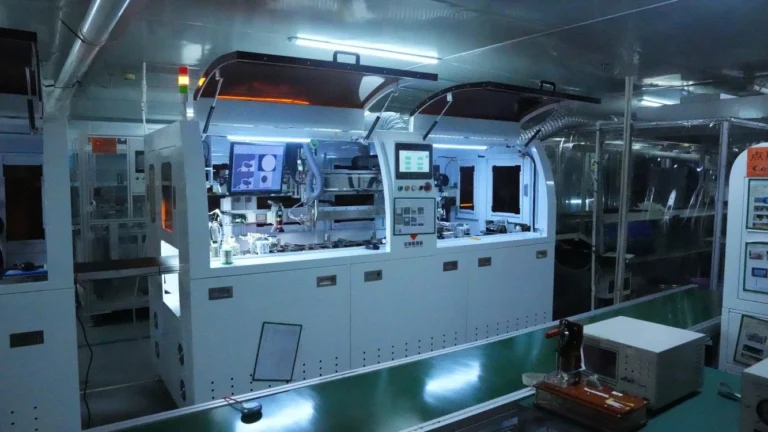
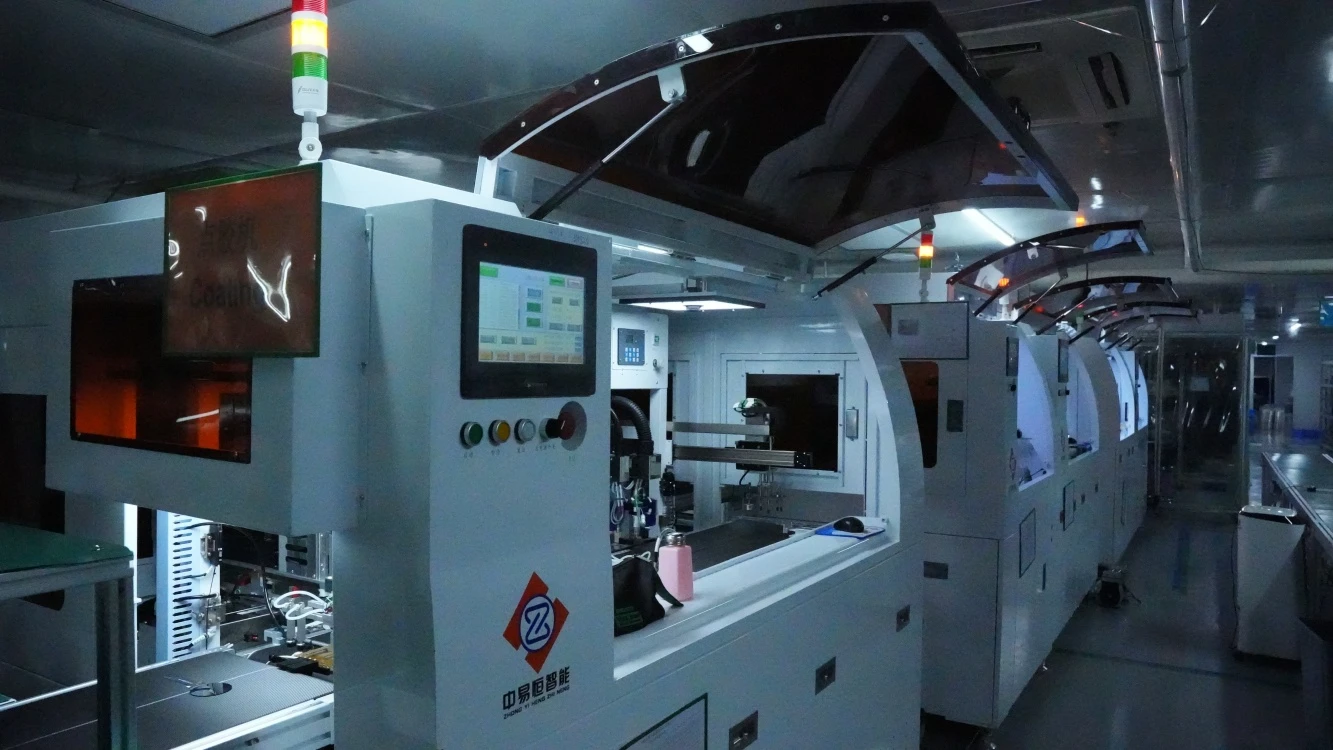
JicTech performs optical bonding in an ISO Class 7 cleanroom using automated dispensing and vacuum lamination, ensuring zero particle contamination.
3. Reinforced Cover Glass and Chassis
Industrial displays require mechanical designs that consumer panels ignore:
- Chemically strengthened glass (e.g., Corning Gorilla or equivalent) resists point impacts that cause pressure bruises
- Metal chassis with uniform pressure distribution prevents mounting torque from creating localized stress points
- Shock-absorbing gaskets between the LCD and bezel dampen vibration and impact
4. Wide-Temperature Component Selection
Standard LCD components are rated for 0°C to 50°C. Industrial environments demand more:
- Wide-temperature liquid crystal mixtures (-30°C to 80°C) prevent thermal shock-induced TFT cracking
- High-Tg (glass transition) diffuser plates resist warping that can shift backlight alignment
- Thermal management design with heat spreaders eliminates hot spots that accelerate LED and TFT aging
5. 100% AOI and Burn-In Testing
Sampling-based quality control misses edge-case defects. JicTech’s process includes:
- 100% Automated Optical Inspection: Every panel is scanned for dead pixels, stuck pixels, foreign particles, and pressure marks down to 0.01mm
- 72-hour burn-in test: Panels run continuously at maximum operating temperature to screen out early-life failures
- Backlight uniformity measurement: 9-point or 13-point luminance testing ensures no zone is >15% dimmer than the center
6. ESD-Safe Packaging and Handling
Damage often occurs after manufacturing, during shipping and installation:
- Custom anti-static foam inserts match the panel contour exactly, preventing edge pressure
- Stacking limits and face-up orientation requirements prevent gravity-induced flex
- Installation guidelines specify torque values, washer types, and gasket placement to eliminate installation-related pressure damage
When to Repair vs Replace
Making the wrong decision costs time, money, and—in medical or automotive applications—safety.
| Scenario | Defect Count / Type | Location | Application | Recommended Action | Cost Range |
|---|---|---|---|---|---|
| 1–3 isolated dead pixels | Within ISO Class II limits | Edge or corner | Consumer monitor | Tolerate or warranty claim | $0 |
| Any dead pixels | 1+ | Center 50% of screen | Medical imaging | Replace immediately | $500–$3,000 |
| Cluster defect | 3+ adjacent pixels | Any | Industrial HMI | Replace panel | $150–$600 |
| Suspected dirt | N/A | Any | Any | Clean first, reassess | $0–$10 |
| Pressure damage | N/A | Any | Any | Replace (irreversible) | $100–$800 |
| LED zone failure | Large dark area | Any | Any | Replace BLU or panel | $50–$400 |
| New display (<30 days) | Any defect | Any | Any | Warranty replacement | $0 |
Warranty Coverage for Dead Pixels
- Consumer ISO Class II: Up to 5 dead pixels on 1920×1080 may be considered “acceptable”
- Industrial Class I: Zero dead pixels guaranteed for 12–24 months
- Medical / Automotive: Zero dead pixels, zero pressure marks, zero backlight non-uniformity—full stop
JicTech industrial displays ship with a zero dead pixel guarantee and comprehensive optical test reports for every unit.
Long-Term Availability for Industrial Replacements
Industrial equipment often operates for 10–15 years, far longer than consumer display lifecycles. When replacement is necessary:
- Form-Fit-Function (FFF) compatibility ensures new panels drop into existing mechanical and electrical designs
- EOL management provides 3–5 years advance notice before component obsolescence
- Custom backlight and interface matching guarantees optical and electrical compatibility with legacy systems
People Also Ask (FAQ)
Are black spots on LCD screens permanent?
It depends on the cause. Dead pixels are permanent hardware failures and cannot be repaired. Dirt and debris are temporary and removable with proper cleaning. Pressure damage may be temporary if caught within 48 hours (elastic deformation of the liquid crystal layer), but becomes permanent once the alignment layer is damaged. LED backlight failures are repairable by replacing the backlight unit.
Can dead pixels spread?
A single dead pixel does not “infect” neighboring pixels. However, a cluster of dead pixels (3 or more adjacent) often indicates a systematic defect in the TFT array or driver IC. In these cases, additional pixels may fail over time. If you observe new dead pixels appearing monthly, the panel is likely experiencing progressive TFT degradation and should be replaced.
How do I know if it’s a dead pixel or dirt?
Use the three-test method:
- Power-off test: If the spot is still visible with the screen off, it’s external dirt or surface damage.
- Magnification test: A 10x loupe reveals that dirt has irregular, organic edges, while dead pixels have sharp, rectangular boundaries aligned to the pixel grid.
- Touch test: Gently wipe the area with a microfiber cloth. Dirt will smudge or move; dead pixels will not.
Can pressure cause black spots on an LCD?
Yes. Physical pressure compresses the 3–5μm liquid crystal layer, disrupting molecular alignment. This creates a dark patch where light can no longer pass through properly. Pressure spots differ from dead pixels in three ways: they are usually larger (>2mm), have soft/blurry edges, and may show a rainbow-colored halo when viewed at an angle.
Is one dead pixel acceptable?
For consumer displays, ISO 13406-2 Class II permits up to 5 dead pixels on a Full HD panel, so one dead pixel is technically within spec. For industrial, medical, and automotive displays, zero dead pixels is the standard. A single dead pixel in a medical imaging display can obscure a critical diagnostic feature, making it unacceptable.
Can software fix dead pixels?
No. Software tools like JScreenFix or UDPixel can only fix stuck pixels—subpixels that are frozen in the “on” position and displaying a bright color. A true dead pixel has a failed transistor and cannot be revived by software, pressure, or any consumer-level intervention.
Do dead pixels mean my screen is dying?
A single isolated dead pixel is usually a random manufacturing defect and does not indicate panel-wide failure. However, if you notice:
- Multiple new dead pixels appearing within weeks
- Dead pixels forming a line or cluster
- Dead pixels accompanied by flickering or color distortion
…these symptoms suggest driver IC failure or TFT array degradation, and the panel should be replaced.
How much does it cost to fix black spots on an LCD?
| Fix Type | Consumer | Industrial | Medical/Automotive |
|---|---|---|---|
| Cleaning (dirt) | $0 | $0 | $0 |
| Stuck pixel software | $0 | $0 | $0 |
| Backlight unit replacement | $50–$150 | $150–$400 | $400–$1,000 |
| Panel replacement | $100–$300 | $150–$600 | $500–$3,000+ |
For industrial buyers, investing in optical bonding, wide-temp components, and AOI-verified panels upfront eliminates these repair costs over the product lifecycle.
What is the difference between a dead pixel and a stuck pixel?
- Dead pixel: The TFT transistor has failed completely. The pixel is permanently black (all subpixels off). Cannot be fixed.
- Stuck pixel: The transistor is frozen in the “on” position. One or more subpixels remain lit (red, green, blue, or white). May be fixable with software cycling or gentle pressure.
Can black spots appear on brand-new LCD displays?
Yes. Manufacturing defects, ESD events during assembly, or shipping pressure can cause new panels to exhibit black spots immediately upon first use. This is why 100% AOI inspection is critical for industrial and medical display procurement—sampling-based QC inevitably allows defective units to slip through. JicTech inspects every single panel before shipment to ensure zero defects at delivery.
Conclusion
LCD black spots are not a single problem—they are a symptom with multiple distinct causes. Accurate diagnosis is the foundation of every correct decision:
- Dirt? Clean it and move on.
- Stuck pixel? Try software recovery.
- Dead pixel or pressure damage? Replace the panel—repair is not viable.
- LED failure? Replace the backlight unit if the display is high-value.
For industrial, medical, and automotive applications, the cost of a field failure far exceeds the cost of prevention. A dead pixel in a patient monitor, a pressure bruise on an automotive cluster, or a corrosion spot on an outdoor HMI can compromise safety, trigger regulatory non-compliance, or force an expensive equipment recall.
The most reliable strategy is to prevent black spots at the source through ESD-safe manufacturing, optical bonding, reinforced mechanical design, wide-temperature components, and 100% AOI inspection.
At JicTech, we engineer industrial-grade TFT LCD displays with zero dead pixel tolerance, ISO Class 7 cleanroom optical bonding, and comprehensive optical test reports for every unit. Our capabilities include:
- ISO 9001 & IATF 16949 certified quality management
- 100% AOI + 72-hour burn-in testing on every panel
- Optical bonding, EMI shielding, and custom cover glass integration
- Wide-temperature designs (-30°C to 80°C operating range)
- Long-term availability with EOL management and FFF replacement programs
Whether you need a 7-inch industrial HMI, a 10.1-inch medical display, or a custom automotive LCD cluster, our engineering team ensures your display performs flawlessly from day one through end of life.
Contact JicTech today to discuss your custom LCD requirements, request optical uniformity test reports, or review our full quality certification documentation. Let us build a display that never gives your end users a reason to search “how to fix black spots.”
Last updated: August 2026 | Technical specifications subject to continuous improvement